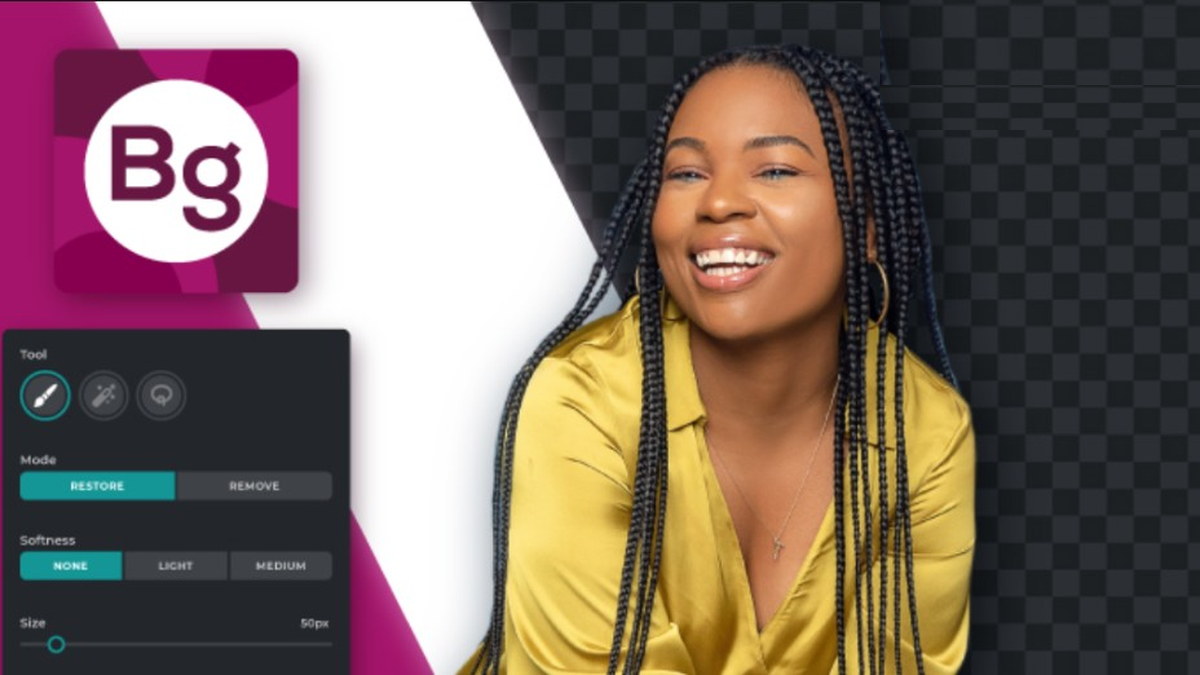
If you are looking for a Pixlr background remover APK for Android, you are usually trying to do one job well: separate a subject from its background so you can drop it on a new color, a banner, or a marketplace template. Pixlr is a strong photography editor on mobile—its selection, masking, and layer tools are what you use to remove backgrounds manually or refine automatic cutouts, then export a transparent PNG when you need a real alpha channel. This article explains how that workflow fits Android, what to expect around hair and product edges, and how to keep file quality under control—without scattering extra links through the text.
Use the orange download block above (and the matching block at the end) to open the MODDROID listing for Pixlr so version notes and the download section stay in one place.
Why “background remover” on Android is really a cutout workflow
On phones, “remove background” usually means either an AI one-tap pass or a manual selection you refine. Pixlr behaves like a serious bitmap editor: you work with layers and masks, so you can erase the backdrop, invert a selection, or paint transparency where the automatic pass missed a spot. That flexibility matters for product photos on white tables, portraits with flyaway hair, and logos where crisp edges beat a soft AI halo.
Before you start: image quality and lighting
Background removal gets easier when the subject separates clearly from the wall or scene—good side light, shallow depth of field, or a backdrop color that differs from skin or packaging. Start from the highest-resolution file your gallery still has; upscaling a tiny thumbnail will not recover edge detail. If you shoot for e-commerce, favor even lighting and avoid busy patterns directly behind the object—they force more manual cleanup.
Typical Pixlr flow on Android
Open your photo in Pixlr, then build a subject mask using the tools your build exposes—often a combination of selection, brush erase on a duplicated layer, or inverse selection after outlining the subject. Zoom to 100% or higher for edge work; use a soft brush on hair and a hard edge on boxes and devices. When the backdrop is gone, place the subject on a solid layer underneath to check for halos: gray fringing usually means you need to choke the mask slightly or adjust spill from the old background.
Export: why PNG matters for transparent backgrounds
For a true transparent background, export as PNG (or another format your version lists that preserves alpha). JPEG does not store transparency—flattening will fill “empty” areas with a color and break compositing. Name files clearly (for example product-cutout.png) so you do not overwrite your original camera shot.
SEO-friendly use cases people search for
Resellers and small shops need consistent cutouts for catalogs and auction thumbnails. Creators need fast stickers and thumbnails for short video covers. Students and clubs need clean slides and posters. Pixlr on Android targets the same “photo editor plus layers” audience—if you need batch automation at industrial scale, desktop pipelines still exist, but for on-the-go edits the app is a practical fit.
FAQ
Is there a dedicated “Pixlr background remover” button? Product naming varies by version; look for remove-background, cutout, or use selection plus erase. The capability is the same: a clean mask and transparent export.
Will my PNG be huge? Tall high-resolution exports grow quickly—crop to the subject and resize for the destination (shop listing vs print) before sharing.
Where do I get the Pixlr APK? Use the Download Pixlr buttons in the orange sections at the top and bottom of this page only—minimal link noise in the article body.
Get Pixlr for Android (Photography)
Open app page & download