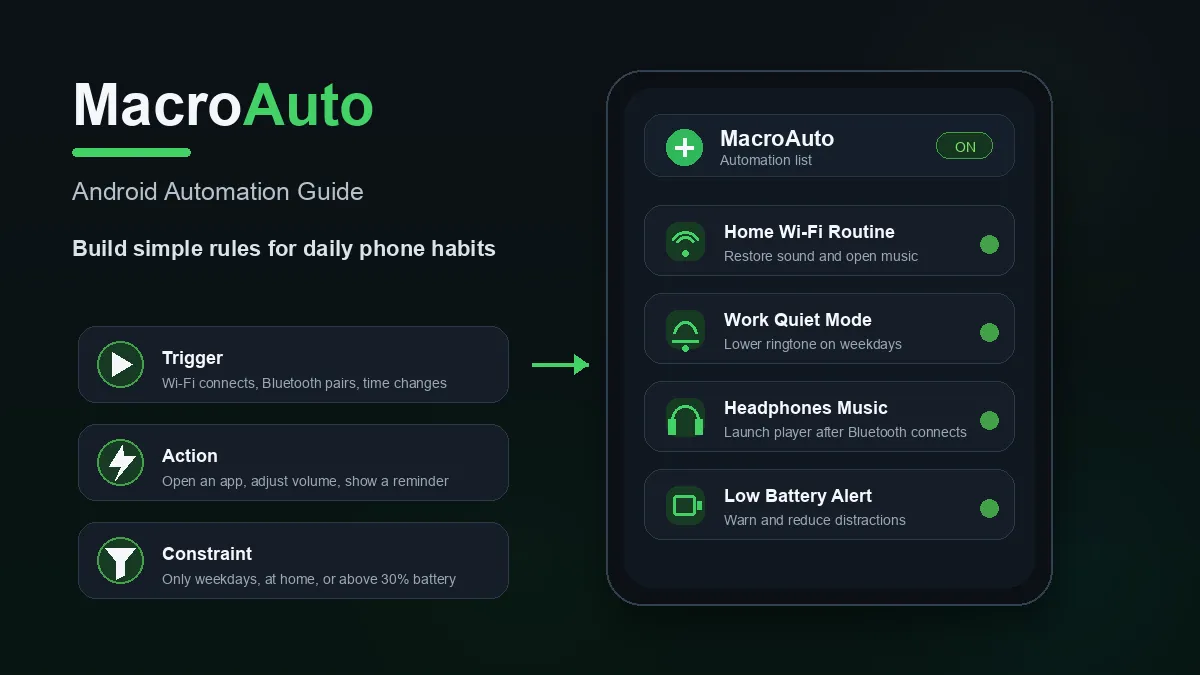
Want MacroDroid-style automation without making it complicated? Start with MacroAuto and build small Android macros around triggers, actions, and constraints.
Download MacroAuto - Android Automation APK
Tools category · Android macros · Triggers, actions, constraints
MacroAuto is easiest to understand if you think of it as a MacroDroid-style Android automation app. You create a rule for your phone: when something happens, do something useful, but only under the conditions you choose.
That means you do not need to start with advanced scripts. A good first setup can be small: open music when earbuds connect, quiet the phone during class, remind you when battery is low, or restore normal sound when you arrive home. The key is learning the automation model first.
1
The MacroAuto Model: Trigger, Action, Constraint
▼
Most Android automation apps follow the same basic pattern. MacroAuto can be explained through three parts:
- Trigger: the event that starts the macro, such as time, Wi-Fi, Bluetooth, charging, battery level, notification, device boot, or opening an app.
- Action: what your phone should do next, such as open an app, show a notification, change sound mode, adjust volume, play a sound, or run a set of steps.
- Constraint: an extra condition that must be true, such as only on weekdays, only at home, only when charging, only during a time range, or only when battery is below a level.
If you understand those three words, you already understand the core idea behind MacroAuto and MacroDroid-like automation.
2
Idea 1: Home Wi-Fi Routine
▼
A simple home routine is one of the best first macros because the trigger is easy to understand. When your phone connects to your home Wi-Fi, MacroAuto can restore normal volume, show a reminder, open a smart home app, or prepare your phone for evening use.
Example setup
- Trigger: connected to your home Wi-Fi network
- Actions: set media volume, disable silent mode, show a "Welcome home" notification, open your music or smart home app
- Constraint: only after 5 PM, or only on weekdays
This is safer than trying to automate every network setting at once. Some Android versions restrict direct mobile data or GPS toggles, so beginner macros should start with actions Android reliably allows.
3
Idea 2: Work or Class Quiet Mode
▼
One of the most useful Android automations is also one of the simplest: make the phone quiet during predictable hours, then restore it afterward. This works well for school, office hours, meetings, church, study blocks, or sleep time.
Example setup
- Trigger: Monday to Friday at 8:30 AM
- Actions: lower ringtone volume, reduce media volume, enable vibration or Do Not Disturb where Android permissions allow it
- Constraint: only when connected to office Wi-Fi, or only when calendar time matches your schedule
A second macro can restore normal sound at the end of the day. Keeping the "quiet" macro and "restore" macro separate makes testing easier.
4
Idea 3: Headphones or Bluetooth Music Launcher
▼
If you open the same music or podcast app every time your earbuds connect, automate that habit. This is a good beginner macro because the result is obvious and easy to test.
Example setup
- Trigger: Bluetooth device connected, or wired headset plugged in
- Actions: open Spotify, YouTube Music, Deezer, podcast app, or volume panel; set media volume to a safe level
- Constraint: only between 6 AM and 11 PM, or not when battery is below 10%
Avoid starting playback automatically until you are sure the behavior fits your routine. Opening the app first is less intrusive and easier to control.
5
Idea 4: Low Battery Protection
▼
Battery macros are practical because they solve a real problem without needing a complex setup. When your phone reaches a low battery level, MacroAuto can remind you, reduce distractions, or prepare the phone to last longer.
Example setup
- Trigger: battery below 20%
- Actions: show a high-priority notification, lower brightness, reduce media volume, turn off vibration, open battery settings, or play a short alert
- Constraint: only when not charging
Some power-saving toggles depend on your Android version and device manufacturer, so treat this macro as a reminder-and-adjustment workflow first.
6
Idea 5: App-Specific Modes for Games, Study, and Focus
▼
App launch triggers are useful because different apps need different phone behavior. A game may need higher media volume and fewer interruptions. A study app may need quiet mode. A navigation app may need brightness raised before driving.
Example setup
- Trigger: a selected app is opened
- Actions: adjust media volume, show a reminder, open a companion app, change screen brightness where supported, or silence notifications
- Constraint: only on battery above 30%, only while headphones are connected, or only during a chosen time range
This is where constraints matter. Without constraints, app-based macros can become noisy. With constraints, they feel intentional.
7
Idea 6: Important Notification or Keyword Reminder
▼
Notification-based automations can help when you miss important messages. For example, you may want a stronger alert when a delivery app updates, a banking app sends a payment notification, or a work chat contains a specific keyword.
Example setup
- Trigger: notification received from a selected app, optionally matching a keyword
- Actions: play a sound, vibrate, show a large popup, repeat a reminder, or open the app
- Constraint: only during work hours, or only when the screen is off
This type of macro usually requires notification access. Grant only the permissions you understand, and keep the rule narrow so it reacts to important alerts, not every message.
Beginner Automation Cheat Sheet
| Goal |
Trigger |
Action |
Constraint |
| Home routine |
Wi-Fi connected |
Restore sound, open app |
After work hours |
| Quiet class mode |
Time schedule |
Lower ringtone, enable vibration |
Weekdays only |
| Music launcher |
Bluetooth connected |
Open music app, set volume |
Battery above 10% |
| Low battery alert |
Battery below 20% |
Show alert, lower brightness |
Only when not charging |
| Game mode |
Game app opened |
Set media volume, reduce distractions |
Headphones connected |
How to Build Your First MacroAuto Rule
Start with one macro that is easy to test. Do not build a giant rule on day one. Pick a trigger you can repeat, choose one or two actions, then add one constraint only if you need it.
- Choose one daily habit you repeat on your phone.
- Select the trigger that starts that habit, such as Bluetooth connection, Wi-Fi connection, time, battery level, or app launch.
- Add one clear action, such as opening an app, changing volume, or showing a reminder.
- Add a constraint only if the macro should not run every time.
- Test the macro twice, then rename it clearly so you know what it does later.
After that, build more small macros. Small rules are easier to understand, easier to disable, and easier to fix when Android permissions or battery settings interfere.
Permissions and Android Limits to Know
MacroAuto can automate many everyday tasks, but Android still controls sensitive settings. Notification access, accessibility access, Do Not Disturb access, background running, and battery optimization may affect what a macro can do. Some system toggles may also vary by Android version or phone brand.
The best beginner approach is simple: grant permissions only when a macro needs them, keep important automation apps excluded from aggressive battery optimization, and test one rule at a time.
Verdict: Start With Practical MacroDroid-Style Ideas
MacroAuto makes the most sense when you use it for real daily phone habits, not abstract automation experiments. Start with Wi-Fi, sound, Bluetooth, battery, notification, and app-launch scenarios. Those are easy to understand and useful enough to keep.
Once the trigger-action-constraint model feels natural, you can combine rules, add stricter constraints, and build a full Android automation setup around your own routine.
FAQ: MacroAuto Beginner Guide
What is MacroAuto used for?
MacroAuto is used to automate repeated Android tasks. It can react to time, Wi-Fi, Bluetooth, battery, notifications, app launches, and other events, then run actions when the right conditions are met.
Is MacroAuto similar to MacroDroid?
Yes. MacroAuto follows the same core automation idea users expect from MacroDroid-style apps: triggers start a macro, actions do the work, and constraints decide when the macro is allowed to run.
Does MacroAuto require root?
No. Most everyday automations do not require root. Advanced system actions may depend on Android version limits, permissions, accessibility access, notification access, or manufacturer battery settings.
What is a good first MacroAuto automation?
Start with a Bluetooth or Wi-Fi rule: when your earbuds connect, open your music app; or when your home Wi-Fi connects, restore normal sound and show a reminder.
What are triggers, actions, and constraints?
A trigger is the event that starts a macro, an action is what the phone does afterward, and a constraint is an extra rule that must be true before the macro runs.
Related on MODDROID
Ready to try your first Android automation? Download MacroAuto on MODDROID.
Get MacroAuto on MODDROID